The GUI application to use Cisco VIRL; VM Maestro, comes with a basic internal Telnet and SSH client called “Cisco Terminal”.
If, like me, you want to use the rock-solid SecureCRT as a terminal emulator client, you need to change the VIRL VM Maestro preferences.
VIRL VM Maestro configuration
-
- Open VM Maestro
- Go to File and open Preferences
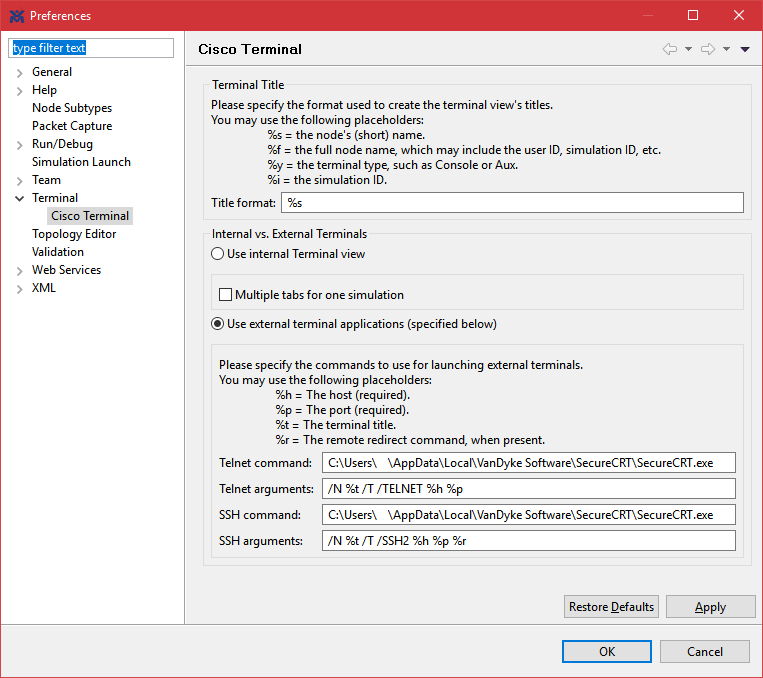
- Under Terminal, open Cisco Terminal
- Choose: Use external terminal applications
- Enter the settings :
-
- Telnet command: the location of your SecureCRT.exe
Depending on your SecureCRT installation, it could be under:
C:\Program Files\VanDyke Software\…
or under:
C:\Users\youruser\AppData\Local\VanDyke Software\…
- Telnet command: the location of your SecureCRT.exe
-
- Telnet arguments: /N %t /T /TELNET %h %p
-
- SSH command: same as the telnet command
-
- SSH arguments: /N %t /T /SSH2 %h %p %r
Here is a screenshot:
There you go!