
Here is another post in the series on basic network troubleshooting and tools under Linux.
In this post, I will talk about the cURL Linux command.
Other posts of the series
This post is part of a series of Linux Networking tips and tricks.
The other posts of this series are:
The cURL Linux command: What is cURL?
cURL is a Linux command-line tool for getting or sending data and files, using a URL syntax.
Since cURL uses libcurl, it supports every protocol libcurl supports, like: DICT, FILE, FTP, FTPS, Gopher, HTTP, HTTPS, IMAP, IMAPS, LDAP, LDAPS, MQTT, POP3, POP3S, RTMP, RTMPS, RTSP, SCP, SFTP, SMB, SMBS, SMTP, SMTPS, Telnet, and TFTP.
cURL also supports SSL certificates, HTTP POST/PUT, FTP uploading, HTTP form-based upload, proxies, HTTP/2, HTTP/3, cookies, user+password authentication (Basic, Plain, Digest, CRAM-MD5, NTLM, Negotiate, and Kerberos), file transfer resume, proxy tunneling, and more.
cURL was first released in 1997 and was originally named httpget. Then it became URLGet before adopting the current name of cURL. The original author and lead developer is the Swedish developer Daniel Stenberg, who created cURL because he wanted to automate the fetching of currency exchange rates for IRC users (source WikiPedia).
What’s curl used for?
The cURL command is used in the command line or scripts to transfer data. It is also used in many IoT and connected devices and is the Internet transfer backbone for thousands of software applications affecting billions of humans daily.
For network engineers, it is very valuable for testing purposes, for example, to make API queries from the command line or to test a website’s status.
How to use curl?
I cannot cover all the options for using curl, because there are so many. But instead, I will provide below some useful examples of how to use cURL in day-to-day operations.
Basic
Most basic, download a single file from a website:
$ curl http://example.com/path.to.the/file.xyz
Play with files
To download a file and specify a new local filename (-o option):
$ curl http://example.com/file.xyz -o new_file_name.xyz
Download multiple files at once, from multiple locations (-O option is to keep the original filename):
$ curl -O http://example.com/first-file.xyz -O http://anothersite.com/second-file.xyz -O http://site3.com/file.xyz
To download all sequentially numbered files (files 1-24 in this example):
$ curl http://example.com/file[1-24].xyz
Download a file and follow redirect if needed (-L option):
$ curl -L http://example.com/file
To download a file and pass HTTP Authentication (-u option):
$ curl -u username:password URL
Using Proxy or FTP
Download a file with a Proxy (-x option):
$ curl -x proxysever.example.com:PORT http://address-i-want-to.access
To download a file from an FTP server with authentication (-u again for the authentication and -O to keep the original file name):
$ curl -u username:password -O ftp://example.com/pub/file.zip
Upload a file to an FTP server with authentication (-u for the authentication and -T for Transfer option):
$ curl -u username:password -T image.png ftp://ftp.example.com/images/
Get an FTP directory listing:
$ curl ftp://username:password@example.com
Misc.
Resume a previously failed or aborted download (-C option to resume the transfer and -o to define the local file name):
$ curl -C - -o partial_file.zip http://example.com/file.zip
As we saw, the lowercase -o option saves the file with a different name. Here we can also use the original remote file name using the uppercase -O option.
Fetch only the HTTP headers from a response (-I option):
$ curl -I http://example.com
This is useful to check the status of a website, in combination with the -s option (silent) and -L to follow the redirect, if any.
This is also useful to see the location of a Tiny URL, for example:
$ curl -sIL https://tinyurl.com/ybtwo4o4 | grep "^location"
location: https://jtnetwork.io/linux-networking-part-4
Limit the download rate speed (–limit-rate option):
$ curl --limit-rate 100B -O http://example.com/file
POST to an HTTP form (-F option)
$ curl -F "username=user" -F "password=test" http://example.com/form.html
Use the format: form_field_name=content with -F
POST request, for example, for an API (–data or -d for HTTP post and -X POST for the request option)
$ curl --data -X POST "param1=value1" https://example.com/api
We can also specify the content type with -H header option, and -d for data option, for example, for JSON data:
$ curl -H "Content-Type: application/json" -X POST -d '{"user":"joe","pass":"xyz"}' http://example.com/api
How to have fun with curl?
After having seen examples of how to work with cURL, here are some cooler examples.
Get the local weather report in the command line
Simple as:
$ curl wttr.in
Get the weather report of the city you like:
$ curl wttr.in/<city>
You can use the city name, zip, or airport code, for example: $ curl wttr.in/London
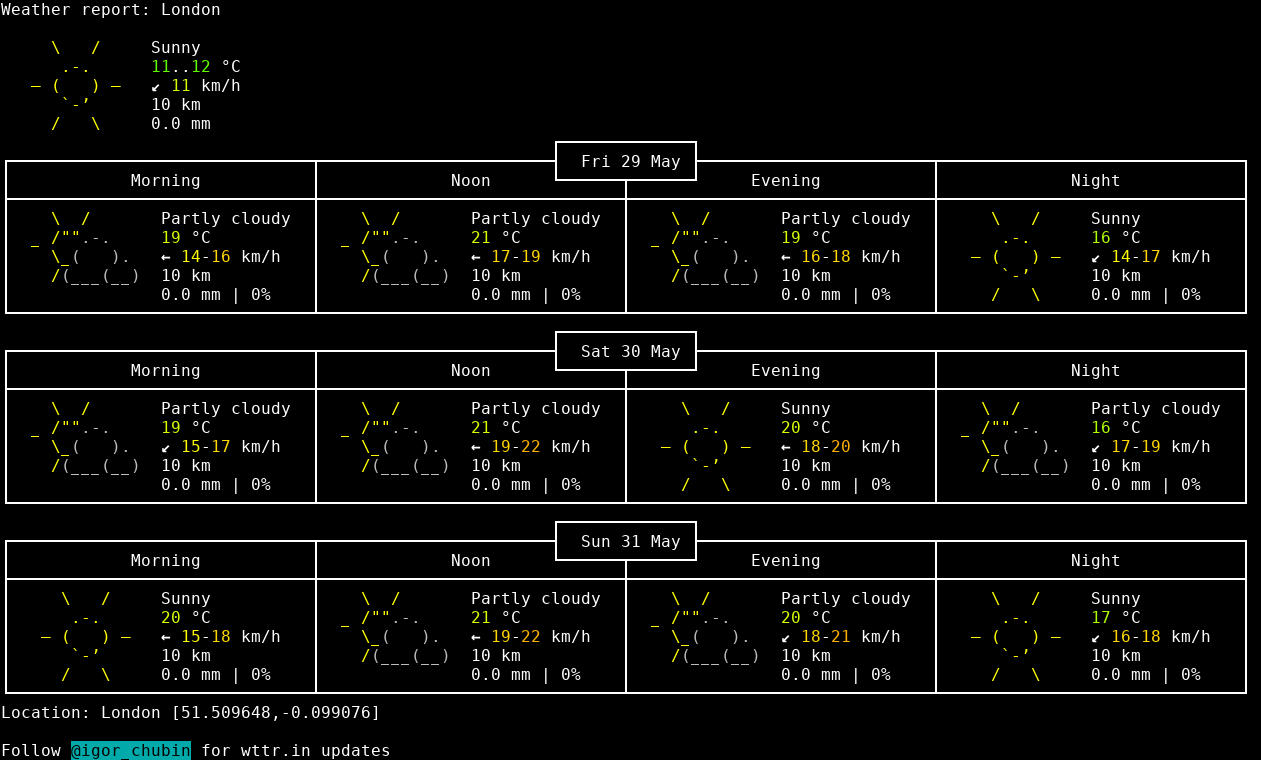
You can use the short version also:
$ curl wttr.in/Zurich?format=3
Zurich: ⛅️ +22°C
Or get an image of this report:
$ curl wttr.in/London.png --output London.png
In another format:
$ curl wttr.in/London_view=v2.png --output London.png
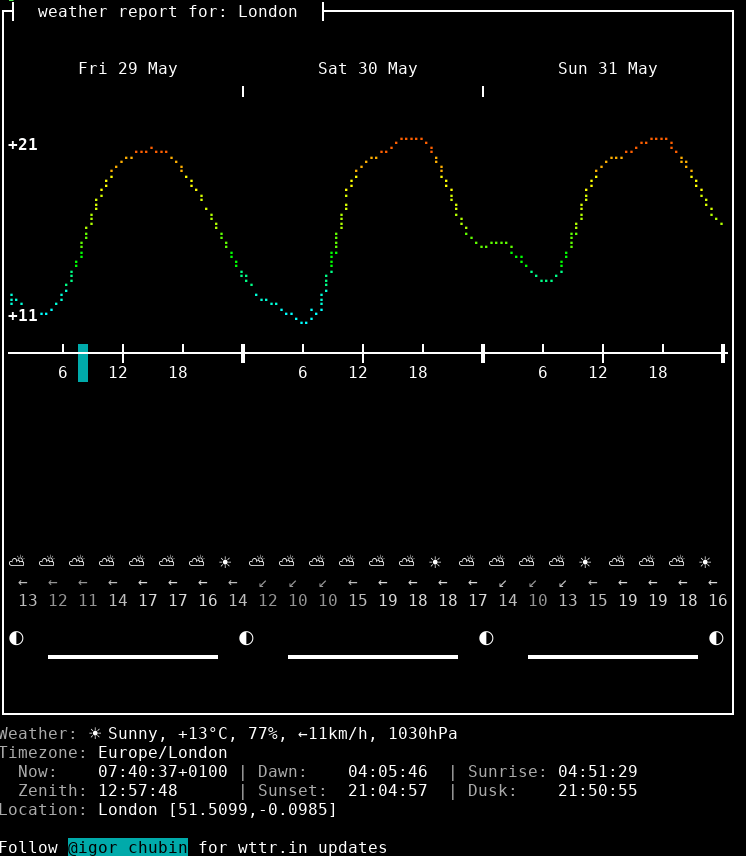
Get the local daily graph of temperature and precipitation:
$ curl v2.wttr.in
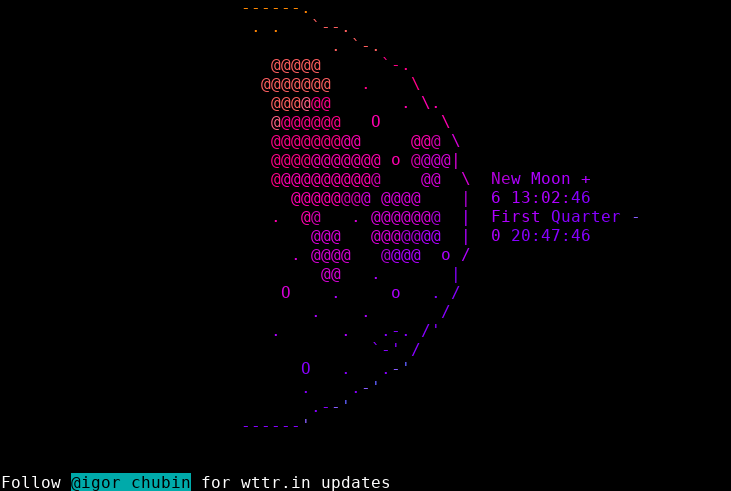
To see the moon status:
$ curl wttr.in/moon
Make a QR code in the command line
Base is:
$ curl qrenco.de
For example:
$ curl qrenco.de/https://jtnetwork.io
Cheat Sheet:
$ curl cheat.sh
For example, you need a cheat sheet on curl:
$ curl cheat.sh/curl
Or for vim:
$ curl cheat.sh/vim
And much more…
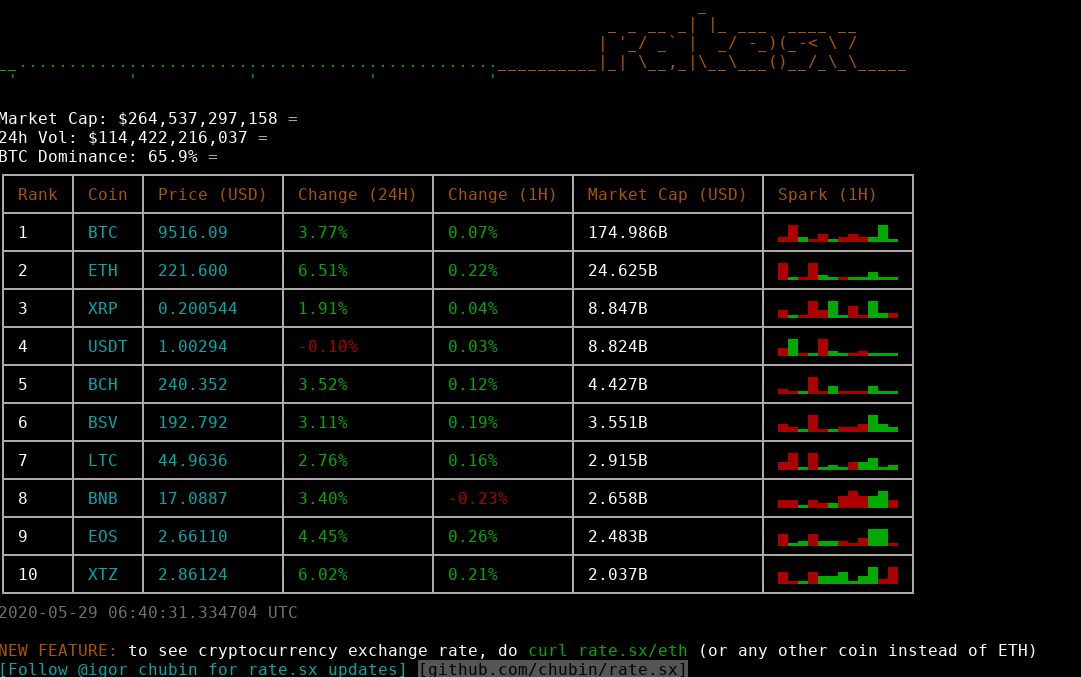
To get the cryptocurrency exchange rate in cli
Cryptocurrency exchange rate:
$ curl rate.sx
Bitcoin exchange rate:
$ curl rate.sx/btc
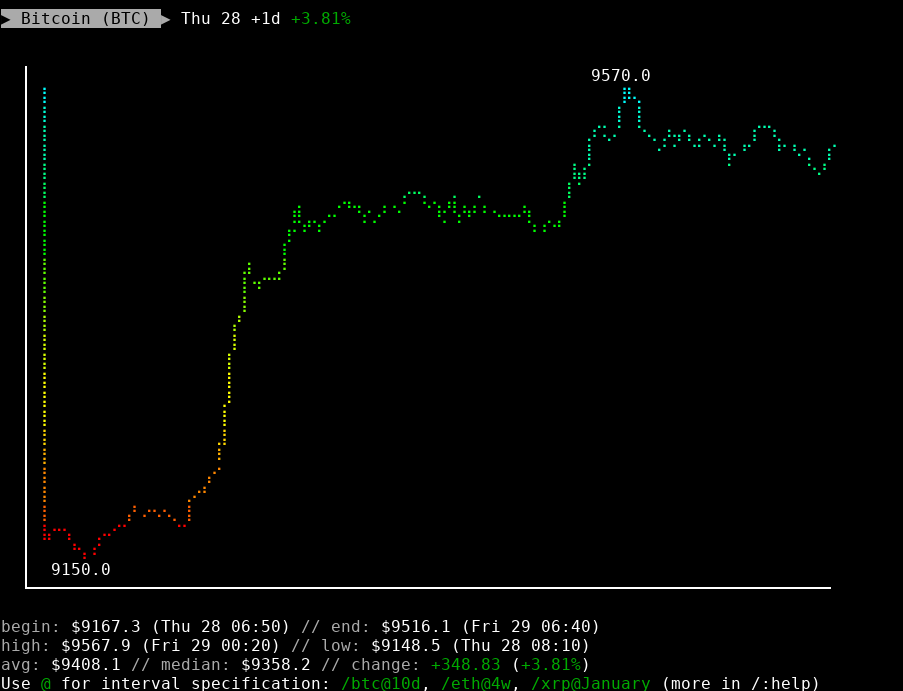
Ethereum exchange rate:
$ curl rate.sx/eth
Etc…
Get your current IP address (external IP)
$ curl ifconfig.me
The same in JSON or XML formats:
$ curl ifconfig.me/all.json
or
$ curl ifconfig.me/all.xml
Go to https://ifconfig.me/ for more options.
Get your current (external) IP, IP-based geo location, AS number of your ISP, and much more
$ curl ipinfo.io
Read more
Everything curl – the book
Everything curl is an extensive, detailed, and totally free book, available in multiple formats, here: https://curl.haxx.se/book.html
The web version of the book is here: https://ec.haxx.se/
Other sources used in this post
Other posts of the series
This post is part of a series of Linux Networking tips and tricks.
The other posts of this series are:
Missing the i in ifconfig in the “The same in JSON or XML formats:” section
Fixed. Thank you very much!